
Ayup! Here’s how to export print-ready files with Affinity. I’m using the current version (v3/by Canva), but the steps work exactly the same in v2. From how to set up your file to exporting with the relevant settings, it’s all right here.
This process is usually required before sending your artwork to a commercial printer or distribution partner. We’ll make sure your document contains the relevant bleed, uses the right colour profile and has the correct dpi settings.
Print-ready files in Affinity
This one’s a teeny tiny bit more complicated than exporting a print-ready file in Canva. That said, Affinity allows for infinitely more control and precision. Once you’ve gone through the steps a few times, it will quickly become second nature.
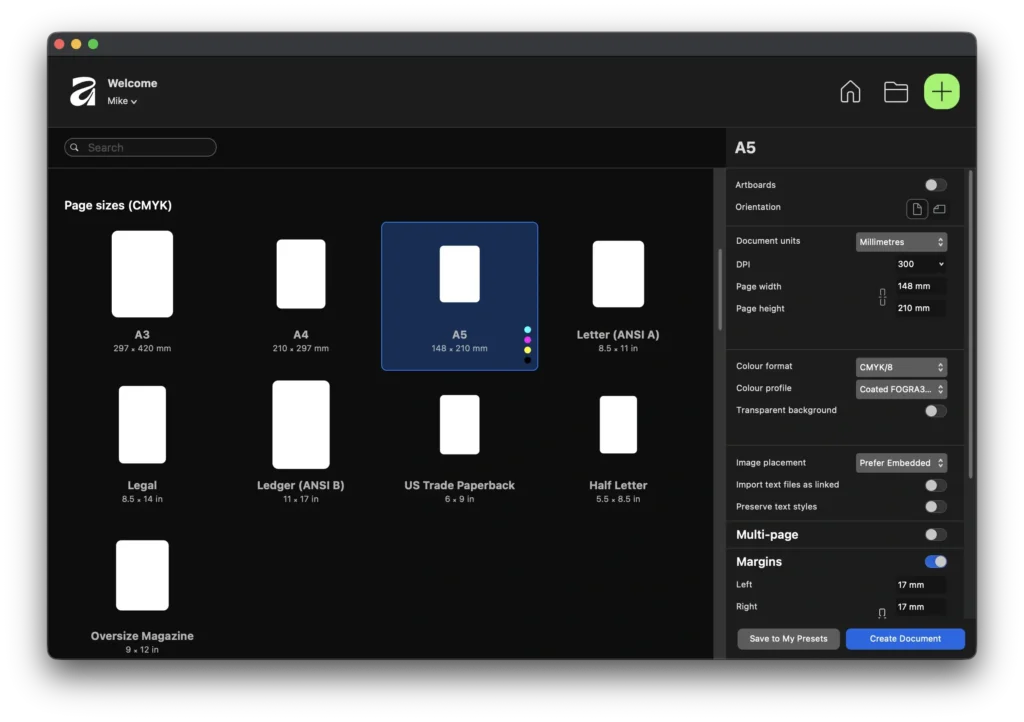
1. Setting up your file
- Big green + icon
- Scroll down to Page sizes (CMYK) – Choose preset size or click on one and enter your own size in mm
- DPI Should be 300
- Colour format should be CMYK/8
- Colour profile – Check with your printer or leave as the default
- Turn Multi-page on if you need more than one side
- Adjust your margins if needed
- Bleed should be 3mm on all sides
Job done. The beauty of selecting a CMYK Page sizes preset is that most of the above will all be set up for you. All you usually need to do is set up your pages. For example, adding a second page as a reverse side to your flyer. In this instance, also uncheck facing pages. This will give you two separate pages to work from.
2. Designing your artwork
Once you’re all set up, the file will open in the Layout studio. This is the Affinity equivalent of InDesign. You can also swap over to Vector (Illustrator) and Pixel (Photoshop) as and when needed.
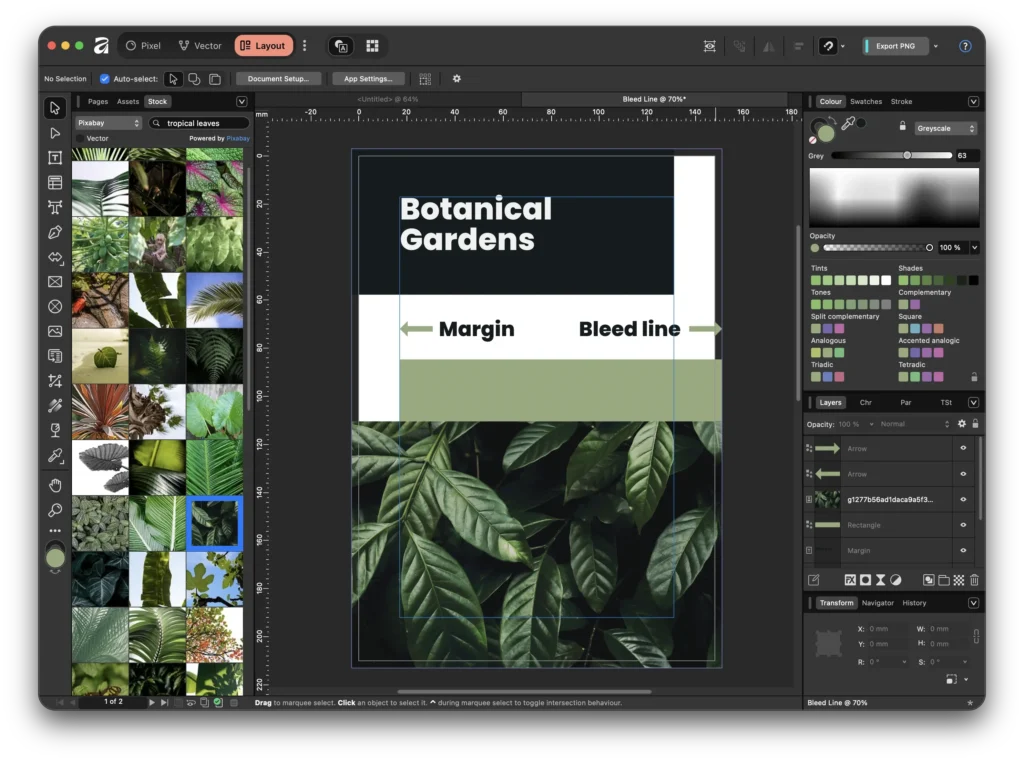
The most important part here is the bleed and the margin. Any images that go right to the edge of the page must extend out to the bleed line. This is shown as a purple line that goes around the outside of your page. Remember that the area from the edge of the page to the bleed line will be trimmed off after printing.
Additionally, use your margin to keep all of your text away from the edges of the page. Change the margin width at any stage from Document Setup.
3. Exporting your print-ready file
Lastly, once you’ve finished designing your artwork, it’s time to export it. Again, Affinity makes this nice and easy for you, thanks to the press ready preset.
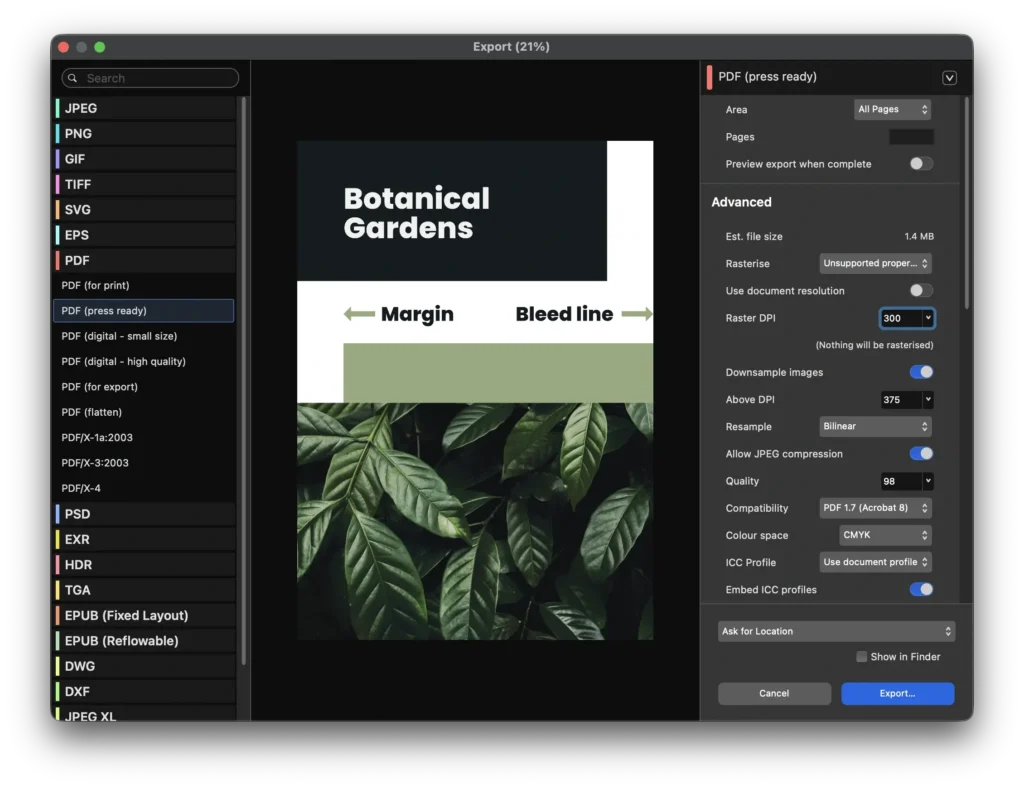
- File > Export > Export
- Select PDF (press ready)
- Raster DPI should be 300
- Colour space should be CMYK
- Include Bleed should be on
- Include printers marks should be off (unless requested)
- Hit Export
- Check over your file
Providing your file was set up correctly, and you used the press ready export option, all of the above will automatically be applied. Any other settings can usually be left as they are.
Fire your file over to your printer, and they’ll let you know if any further adjustments are needed.
Practice and repeat
As mentioned, this process is slightly more complicated than it is in Canva. Don’t let that put you off, though. Affinity is much better suited to designing professional print files. Once you’ve got to grips with the three required steps, you’ll be churning out print-ready files without even thinking about it.
Affinity has fully replaced our need for a Creative Cloud subscription here at Leaflet Lion. That’s how powerful it is. It comes fully recommended as a print design solution. Lots of the settings and presets are very much geared towards commercial printing. For this reason, in my humble opinion, when it comes to designing flyers or leaflets, it’s the best software available.
If you get stuck with any of the above, my inbox is always open.