

Ayup! Affinity has fully replaced our Creative Cloud subscription here at Leaflet Lion. This review focuses on using it as an InDesign alternative. Specifically, for setting up, creating and exporting commercial print files.
I’m using the newest version (V3/by Canva), but everything should still apply to version two of Publisher. Note: in V2, there were three separate apps (Photo, Designer & Publisher) that have now been merged into one.
Affinity is an app unlike anything else in the design world: a unified suite that brings together vector, pixel and editing studios in a single workspace. No switching between separate apps, no file conversions, everything in the same document.
The print workflow is also built into this structure; it is not an afterthought, but a fundamental function. Every step, from colour management to print preflight, is designed with printing requirements in mind.
What this Affinity review’s based on:
Since its October 2025 release, I’ve been putting the latest version of Affinity through its paces. The software is now owned by Canva, and it’s completely free to download and use. Bonus! Additionally, further AI tools and features can be unlocked with a Canva Pro account. This will set you back £100 per year in the UK.
How very reasonable! I tested out the bits that a pro account unlocks (also wrote about them over on my personal site). Some of them are seriously impressive. Well worth a look, but depending on your requirements, the free version may well suffice.


Setting up files for commercial print
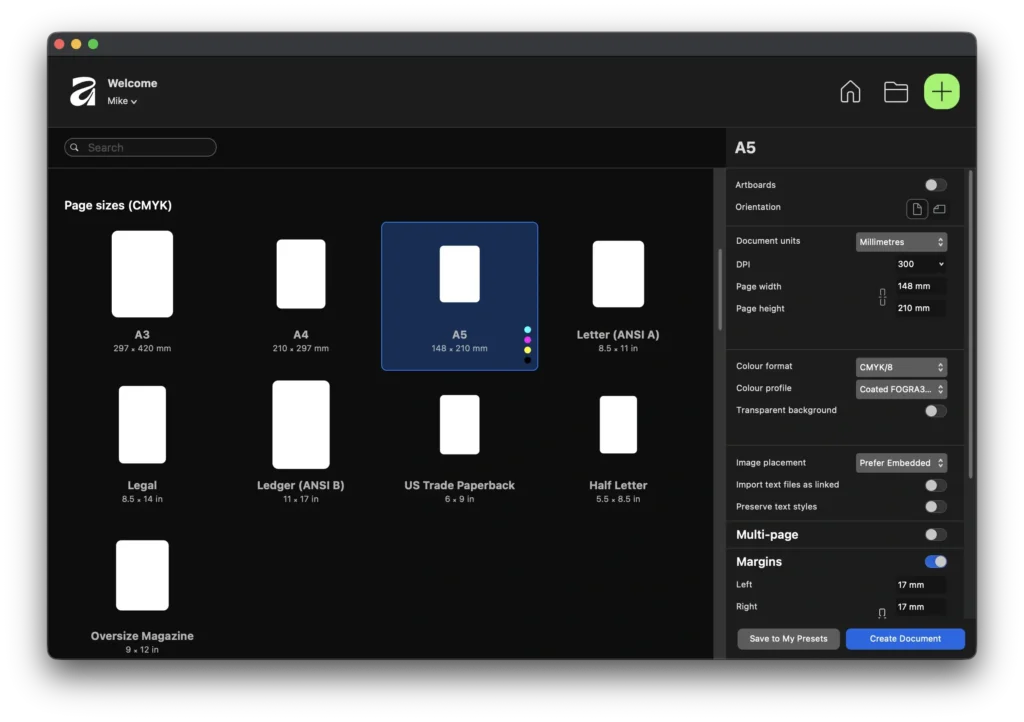
Affinity makes this nice and easy. In fact, the CMYK presets pretty much do everything for you. As you’re setting up your file, you’ll see a list of page sizes to choose from. Make sure you scroll down to (CMYK).
Choose the size you need, or if it’s not available, click any of the options, then adjust the width and height. By selecting a preset, your DPI will be at 300. Check! Your colour format will be CMYK. Check! Your bleed will be set to 3mm. Check!
Furthermore, you’ll automatically have a margin set up. Adjust this to your liking, then we’re almost good to go. If whatever you’re designing has more than one side, turn on Multi-page to set up the rest of your document.
If you know the CMYK colour profile your printer uses, you can also change that at this stage. Otherwise, just leave it as the default.
Hit Create Document, job done. A really smooth, clean process. Nice!
Designing print materials (flyers, posters, etc.)
Designing for print in Affinity is, in my humble opinion, far superior to InDesign. Everything just seems that little bit more intuitive. Yes, you might need to unlearn the Adobe way, but once you do, pow! You’ll be flying around in no time.
Despite there now being three apps bundled into one, Affinity is nippy AF! Like, crazy fast. It’s an absolute pleasure to work with. While you’ll primarily be designing in the Layout studio (formerly Publisher, the equivalent of InDesign), you can instantly switch to Pixel and Vector.
When you’re making something via InDesign, there are countless times when you’ll need to open up Illustrator or Photoshop to edit something. Not any more! After six months of continual use, this still blows my mind. Everything you need all in the same app? Yes, please.
Exporting files for commercial print
When it comes to exporting files for print, again, Affinity makes it super-easy for you. Once you get past the mildly confusing export options, that is.
- PDF (for print) – Don’t select this one, it’s for printing at home
- PDF (press ready) – Do select this one, it’s for commercial printing
As long as the file was set up correctly, exporting with the PDF (press ready) preset does most of the heavy lifting. Just double-check your DPI, colour profile, bleed, etc.
Once you’ve gone through the process a few times, you can export your file in a matter of seconds. Here’s a full tutorial on preparing your files for a commercial printer:
PSD mockups
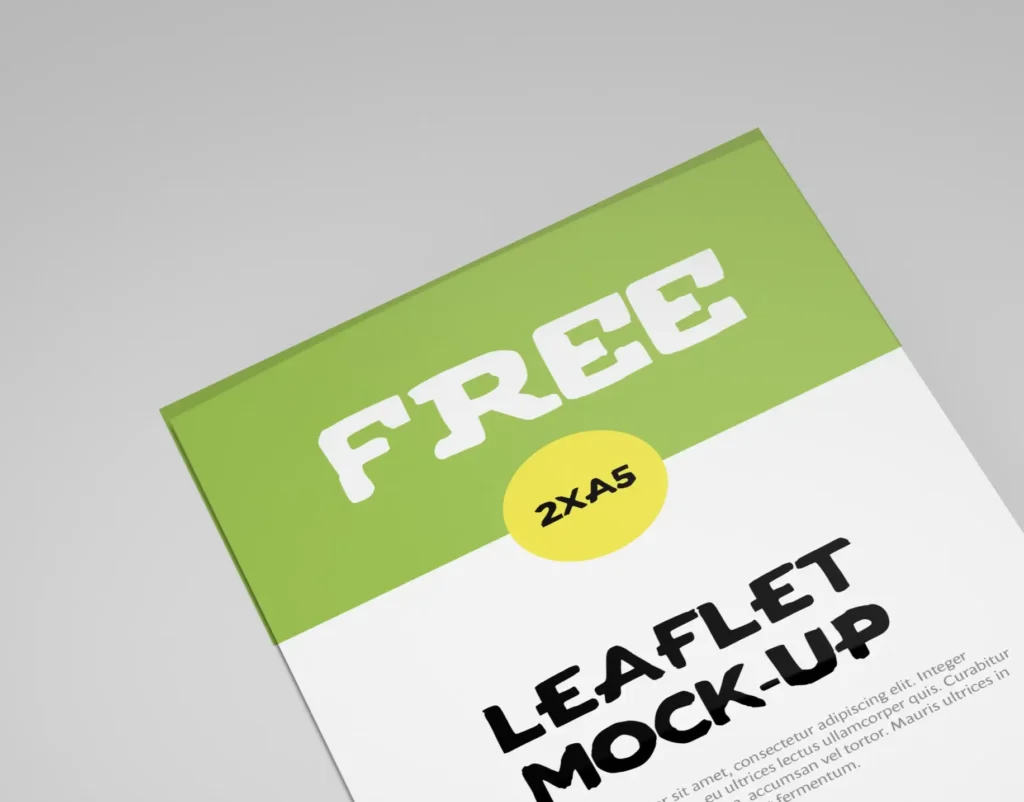
Lastly, in this Affinity review, a quick note on PSD mockups. Most folks working in the world of print design use them to display their work in a realistic setting. Me too! One thing you’ll notice, however, is that they don’t all open correctly.
I’d say around 75% work perfectly. The other 25%, not so much. Something gets thrown out with the alignment. This results in the artwork not matching the surface area it’s supposed to display on. It can be fixed with the mesh warp tool, but it’s really not that easy.
I tend to simply stick with the files that open as they should. I’ll have another go at fixing these at some stage.
Affinity as an InDesign alternative
In case you hadn’t guessed, I’m really rather excited about Affinity. Good job, as over the last year, I’ve lost any respect that I previously had for Adobe. This isn’t just a reasonable substitute, either. If both InDesign and Affinity cost the same amount, I’d easily choose Affinity. It’s faster, more intuitive, and the workflow is unrivalled.
As a print designer, it’s nice to finally be able to escape Adobe’s horrendous subscription model. While there are a few teeny tiny sacrifices (mockup files), the pros far outweigh the cons. Big fan over here.
If you also use Photoshop and Illustrator, having the equivalent of all three apps in one place is phenomenal. Overall, using Affinity as an InDesign alternative is a highly viable option. We made the swap and continue to run a commercial print business just as before. Well, other than having an extra £797.88 in the bank each year. Wohoooo!